Introduction
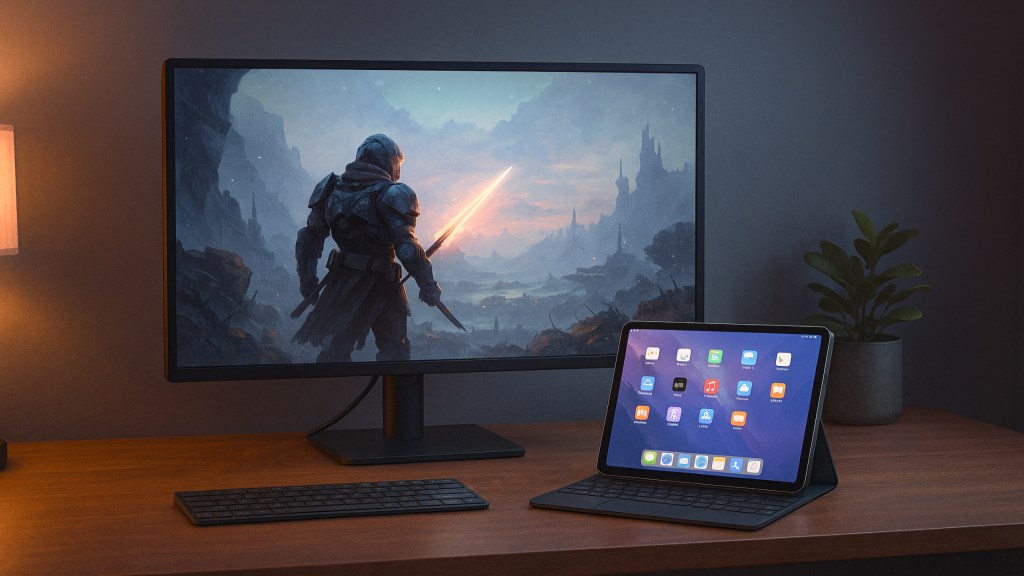
I’ve been curious for a while about what it would be like to play Destiny: Rising on a bigger screen using my M4 iPad Pro. I’ve never connected my iPad to a monitor for gaming before, but I wanted to try it — partly out of curiosity, partly to see whether this could become my go-to setup when I want a more “console-like” experience.
If the experience was good, I figured it might be worth setting up a monitor more often for gaming sessions. So, I grabbed my 28-inch Dell gaming monitor, plugged in the USB-C cable, and got to experimenting.
Connecting an iPad to an External Monitor
When you connect your iPad to an external display, it will usually mirror the iPad screen by default. This means the monitor simply shows whatever is on your iPad, as if it were just a bigger version of the iPad’s display.
Mirroring is simple and works right away — but it comes with some big trade-offs. Since the iPad uses a 4:3 aspect ratio, and most monitors are 16:9, you end up with black bars on the sides of the screen. The image is a little larger overall, but it feels like you’re just looking at a blown-up iPad screen rather than taking advantage of the monitor’s full resolution.
Using Stage Manager for an Extended Display
The better option is to switch to extended display mode using Stage Manager. This can be toggled in Settings → Display & Brightness → Arrangement, where you can choose to extend instead of mirror.
With Stage Manager, the monitor becomes a true second display. You can move apps to the external monitor, resize them, and use both screens independently. In theory, this should give you a full 16:9 experience on a widescreen monitor — closer to a desktop setup.
Unfortunately, many iPad apps aren’t designed to fully take advantage of external displays. Even in extended display mode, most apps are locked to a 4:3 aspect ratio and simply sit in the middle of the screen with unused space on the sides. Destiny: Rising is one of those apps. You can resize the window to make it bigger, but it never truly fills the screen.
Some apps — like Apple’s own productivity tools or pro-grade software such as Final Cut Pro and DaVinci Resolve — are optimized for Stage Manager and will expand to use the full display area. But most games, including Destiny: Rising, stick to their iPad layout.

My Experience Playing Destiny: Rising
Once I had Stage Manager enabled, I moved Destiny: Rising to the monitor and started playing. The game looked good on the bigger screen, but it was clear that this wasn’t the same as gaming on a PC or console.
The M4 iPad Pro properly outputs at 1440p on my Dell display, but it’s limited to 60 fps, even though the monitor can handle up to 165 Hz. This is a limitation of nearly all Apple devices: iPads, iPhones, and Apple TV are capped at 60 Hz for external output. Only recent Macs (M2 and newer) support high refresh rates like 120 Hz, 144 Hz, and in some cases 240 Hz — and even then, the MacBook Air only got this ability with the M4 generation.
As a result, the gameplay was smooth but not buttery-smooth, and the unused space around the game window made it feel like I wasn’t fully using the monitor’s real estate.
Interaction and Control
If you’re using an external monitor without a keyboard or mouse, you can technically use the iPad’s screen as a giant trackpad to control what’s on the monitor. For precision, though, I highly recommend a Bluetooth mouse or trackpad — that’s what I used, and it made the experience much more manageable.
One last note: if you record gameplay using the iPad’s built-in screen recorder, it doesn’t capture what’s displayed on the external monitor — or at least it didn’t for me. Something to keep in mind if you want to capture your gameplay.
Final Thoughts
Playing Destiny: Rising on an external display with the iPad Pro was a fun experiment, but it’s not something I see myself doing all the time. The bigger screen is nice when I want to sit at a desk, but the 4:3 aspect ratio, 60 Hz cap, and limited external display optimization make it feel like a halfway step rather than a true desktop gaming experience.
For iPad gaming on a monitor to really shine, I’d love to see:
- True 16:9 (or even ultrawide) support for games
- Higher refresh rates, at least 120 Hz, to match modern displays
- Dual-screen experiences, where menus or maps can stay on the iPad while gameplay stays on the monitor
Until then, this setup is more of a novelty than a daily driver — fun to try, but not game-changing.

 Scholars Rest